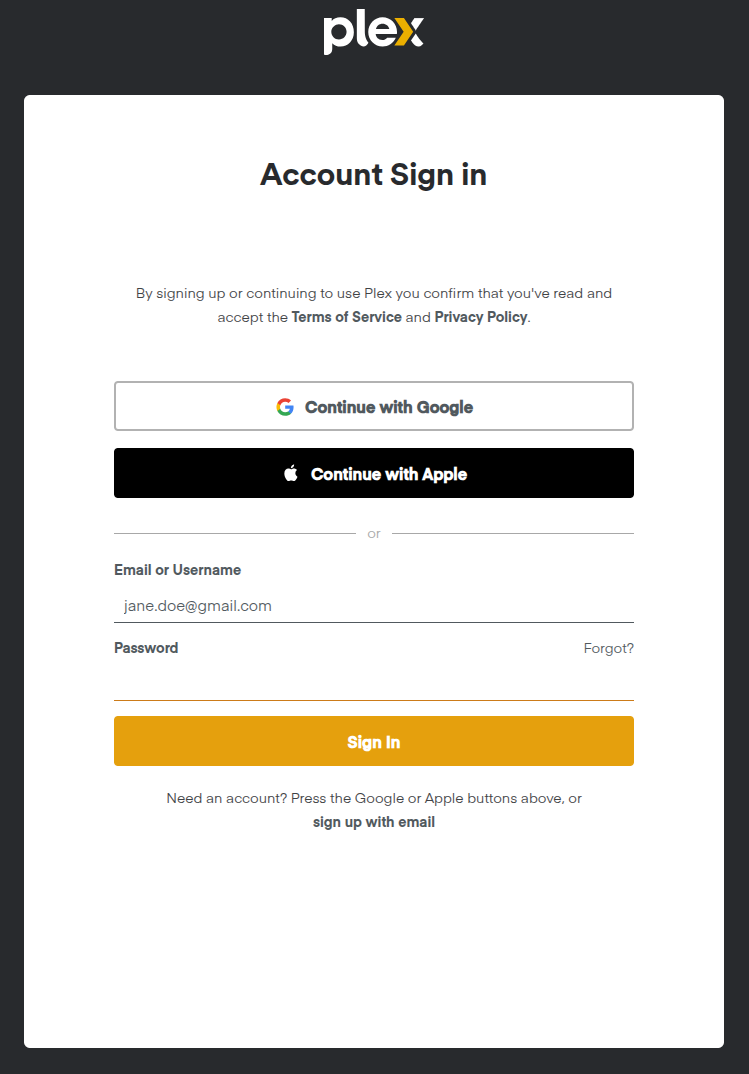
Click the Sign In button at upper right.
An illustration of what you'll see is on the right here (click to enlarge).
Sign up using one's e-mail address. Do not sign up using Google or Apple.
There are no credit card details required;
do not offer any and do not sign up for any monthly or yearly
plan. The only plan needed is through the server owner.
Communicate the e-mail address with the Plex server's owner.
2. Owner invites a friend to view titles on the server
Open the Plex web-based (browser) application
and click Settings (the wrench icon).
Under the server name, select Users & Sharing.
Click Grant Access in the top right corner.
Enter the email address of the friend to invite
and click Continue.
Select the libraries you want to share with the friend,
then click Invite.
3. Set up the streaming device (or smart TV)
Download the Plex application
from the streaming device's application store
(e.g., Apple TV, Roku, Fire TV, or Google TV).
Open the application and select Sign In.
The screen will display a 4-character code. In a phone or computer
browser, go to plex.tv/link, sign in to the Plex account,
and enter the code from the TV screen.
Once the handshake is
completed, the TV screen will automatically refresh.
4. Accept the Invite & Adjust Settings
Check the e-mail inbox
(of the e-mail address the Plex account was set up with)
and clicks the Accept Invitation link.
In the Plex streaming device application,
navigate to the navigation menu (left sidebar)
to find the server listed.